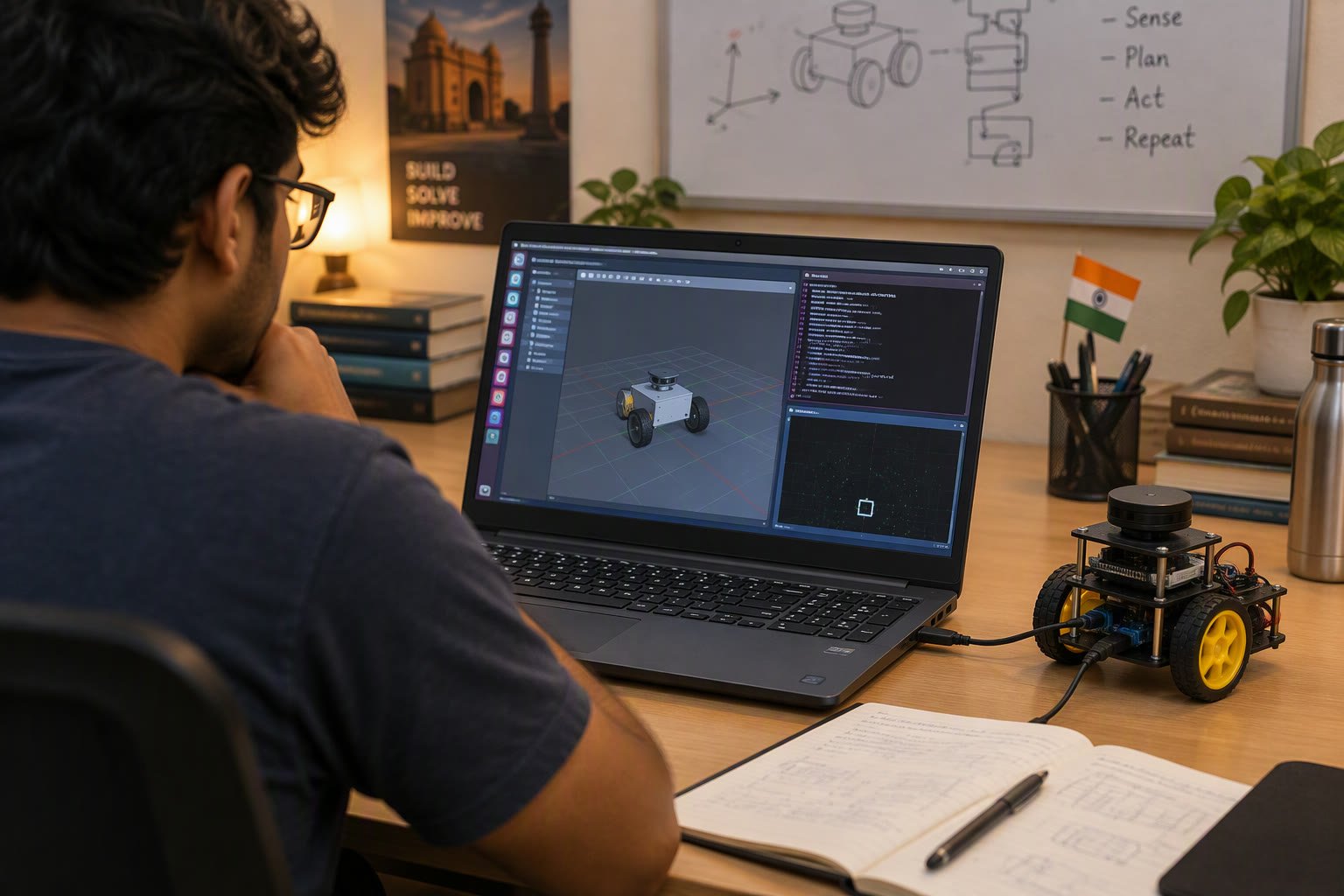
You can run ROS 2 on Windows without wiping your laptop. WSL2 gives you a real Ubuntu kernel inside Windows, and WSLg puts RViz and Gazebo on your desktop without an X server hack.
The catch is that the easy parts are genuinely easy and the hard parts are genuinely hard. Installing ROS 2 takes fifteen minutes; getting a USB serial adapter or a camera into WSL can take an afternoon. This guide covers both, in the order you will hit them.
Why WSL2 and not a virtual machine
A traditional VM runs a full guest operating system with its own virtual disk and network stack. WSL2 also runs a real Linux kernel, but it is integrated: files are reachable from both sides, the network is shared, and GUI applications appear as normal Windows windows. For robotics work on a Windows laptop, that integration saves far more time than it costs.
| Option | Setup effort | GUI performance | USB devices | Best for |
|---|---|---|---|---|
| WSL2 with Ubuntu | Low | Good, via WSLg | Needs usbipd forwarding | Most students and developers |
| Native Ubuntu dual boot | High | Native | Native | Serious ROS work, GPU training |
| VirtualBox or VMware | Medium | Slower, 3D issues | Possible but fragile | Isolated experiments |
| Docker container | Medium | Needs extra setup | Needs device mapping | Reproducible CI and deployments |
If your goal is to learn ROS 2 concepts, WSL2 is the least painful start. If your goal is a hardware-heavy capstone with cameras and real-time control, native Ubuntu is worth the inconvenience.
Check the prerequisites before you start
- Windows 11, or Windows 10 version 21H2 or newer, fully updated.
- Virtualisation enabled in BIOS or UEFI. Without it, WSL2 will install and then refuse to start.
- At least 8 GB of RAM, and ideally 16 GB if you plan to run Gazebo and RViz together.
- Around 20 GB of free disk for Ubuntu plus a ROS 2 desktop install.
- A stable internet connection for the initial package download, which is several hundred megabytes.
To check virtualisation, open Task Manager, go to Performance and look at CPU. If it says “Virtualisation: Enabled”, you are fine. If not, enable Intel VT-x or AMD-V in the BIOS before continuing.
Install WSL and Ubuntu
Open PowerShell as Administrator and run the single command that installs both components.
wsl --installReboot when prompted. On first launch, Ubuntu asks for a Linux username and password. This is a separate account from your Windows login, and the password is used for sudo, so choose something you will remember. Nothing echoes while you type the password; that is normal.
Verify the installation and the WSL version from PowerShell.
wsl --status
wsl --list --verbose
The Ubuntu entry should show version 2. If it shows version 1, convert it with wsl --set-version Ubuntu 2. ROS 2 will not behave correctly on WSL1, because it lacks the networking and kernel features the middleware expects.

Install ROS 2 inside Ubuntu
Open the Ubuntu terminal from the Start menu and update the system first. Then add the ROS 2 repository and install the desktop variant. The exact distribution name depends on your Ubuntu release: Jazzy on 24.04, Humble on 22.04. Do not mix them.
sudo apt update && sudo apt upgrade -y
sudo apt install -y software-properties-common curl

# enable the universe repository
sudo add-apt-repository universe

# add the ROS 2 apt key and repository (Jazzy example)
sudo curl -sSL https://raw.githubusercontent.com/ros/rosdistro/master/ros.key \
  -o /usr/share/keyrings/ros-archive-keyring.gpg
echo "deb [arch=$(dpkg --print-architecture) signed-by=/usr/share/keyrings/ros-archive-keyring.gpg] \
http://packages.ros.org/ros2/ubuntu $(. /etc/os-release && echo $UBUNTU_CODENAME) main" \
  | sudo tee /etc/apt/sources.list.d/ros2.list > /dev/null

sudo apt update
sudo apt install -y ros-jazzy-desktop
The desktop variant includes RViz, demos and tutorials. It is large, roughly 2 to 3 GB installed. If disk space is tight, ros-jazzy-ros-base is much smaller but leaves out the visual tools you will want on day one.
Add the environment setup to your shell so every new terminal knows where ROS 2 lives.
echo "source /opt/ros/jazzy/setup.bash" >> ~/.bashrc
source ~/.bashrc
printenv ROS_DISTRO
Prove it works with two terminals
Open two Ubuntu terminals. In the first, start a talker. In the second, start a listener. If the listener prints messages, the installation and the DDS discovery are both working.
# terminal 1
ros2 run demo_nodes_cpp talker

# terminal 2
ros2 run demo_nodes_py listener
If the listener prints nothing, the usual causes are a missing source in that terminal, a firewall blocking multicast, or two terminals running different distributions. Check printenv ROS_DISTRO in both before changing anything else.
Next, confirm the GUI works. WSLg ships with recent Windows builds, so RViz should open as a normal window without any extra configuration.
ros2 run rviz2 rviz2Getting USB devices into WSL
This is the step that surprises people. WSL2 does not pass USB devices through automatically. A USB serial adapter, an Arduino, an FTDI cable or a camera will not appear in /dev/ttyUSB0 until you forward it explicitly.
Install the usbipd-win tool on Windows, then attach the device from an Administrator PowerShell.
# PowerShell as Administrator
winget install --interactive --exact dorssel.usbipd-win

usbipd list
usbipd bind --busid 2-4        # once per device
usbipd attach --wsl --busid 2-4
Inside Ubuntu, check that the device appeared and that your user has permission to open it.
ls -l /dev/ttyUSB*
sudo usermod -aG dialout $USER   # log out and back in afterwards
Two practical notes. The busid changes when you move the device to a different port, so use the same physical port each time. And attach does not survive a reboot, so you will run it again after every restart.
Where to keep your code
Keep your ROS 2 workspace inside the Linux filesystem, under your home directory. If you create the workspace in /mnt/c/Users/..., every file operation crosses the Windows-Linux boundary and builds become dramatically slower. The classic symptom is colcon build taking four minutes instead of twenty seconds.
To edit Linux files from Windows, use VS Code with the WSL extension. It connects to the Linux side directly and keeps builds fast, which is the opposite of opening the files through the Windows path.
Common failures and what they mean
| Symptom | Cause | Fix |
|---|---|---|
ros2: command not found | Environment not sourced | source /opt/ros/jazzy/setup.bash |
| Talker runs, listener silent | Firewall or mixed distributions | Check distro in both shells, allow WSL through firewall |
| RViz window blank or crashing | GPU acceleration unavailable | Update Windows and WSL, try software rendering |
| Serial device missing | USB not forwarded | usbipd attach, then check /dev/ttyUSB* |
| Builds very slow | Workspace on /mnt/c | Move the workspace into the Linux home directory |
| Out of memory during Gazebo | WSL memory limit too low | Set a .wslconfig memory cap and close unused apps |
When to stop using WSL
WSL2 is excellent for learning and for developing nodes without hardware. It becomes frustrating when you need deterministic timing, direct GPU access for training, or multiple USB devices attached at once. Real-time control loops and hardware-in-the-loop testing belong on a native install.
A sensible progression: learn concepts in WSL2, build the simulation workflow there, and move to native Ubuntu or a dedicated robot computer when the project depends on real hardware timing. The ROS 2 beginner tutorial picks up from a working install, and ROS 2 versus ROS 1 explains why new projects should not start on the older middleware.
Once the install works, the next steps are nodes, topics and services, then launch files, then simulation. Those are covered in the topics, services and actions guide and the launch files tutorial, with Gazebo simulation when you want to test without hardware.
Can I run ROS 2 on Windows without WSL?
There are native Windows builds, but package availability and community answers assume Linux. WSL2 gives you the Linux environment that tutorials and packages expect, with far less friction.
Which ROS 2 version should I install?
Match the Ubuntu release: Jazzy on Ubuntu 24.04, Humble on Ubuntu 22.04. Installing a distribution built for a different Ubuntu version causes dependency errors that are painful to untangle.
Why can't WSL see my Arduino or USB camera?
WSL2 does not pass USB devices through by default. Install usbipd-win on Windows and attach the device with usbipd attach before it appears in /dev.
Is WSL2 fast enough for Gazebo and RViz?
Yes for learning and moderate scenes, especially with 16 GB of RAM. Heavy simulation and GPU training are better on native Ubuntu or a dedicated machine.
Do I need to reinstall ROS 2 after a Windows update?
No. The Ubuntu filesystem and installed packages persist. You may need to reattach USB devices and restart the WSL instance after a major update.
The commands in the lifecycle tutorial assume a working ROS 2 install, which the WSL2 setup guide covers.
Sources and further reading
- ROS 2 Jazzy installation guide — official Debian package instructions.
- Microsoft WSL documentation — install, configuration and troubleshooting.
- usbipd-win — USB device forwarding from Windows to WSL.
- ROS 2 tutorials — beginner CLI, client libraries and simulation.