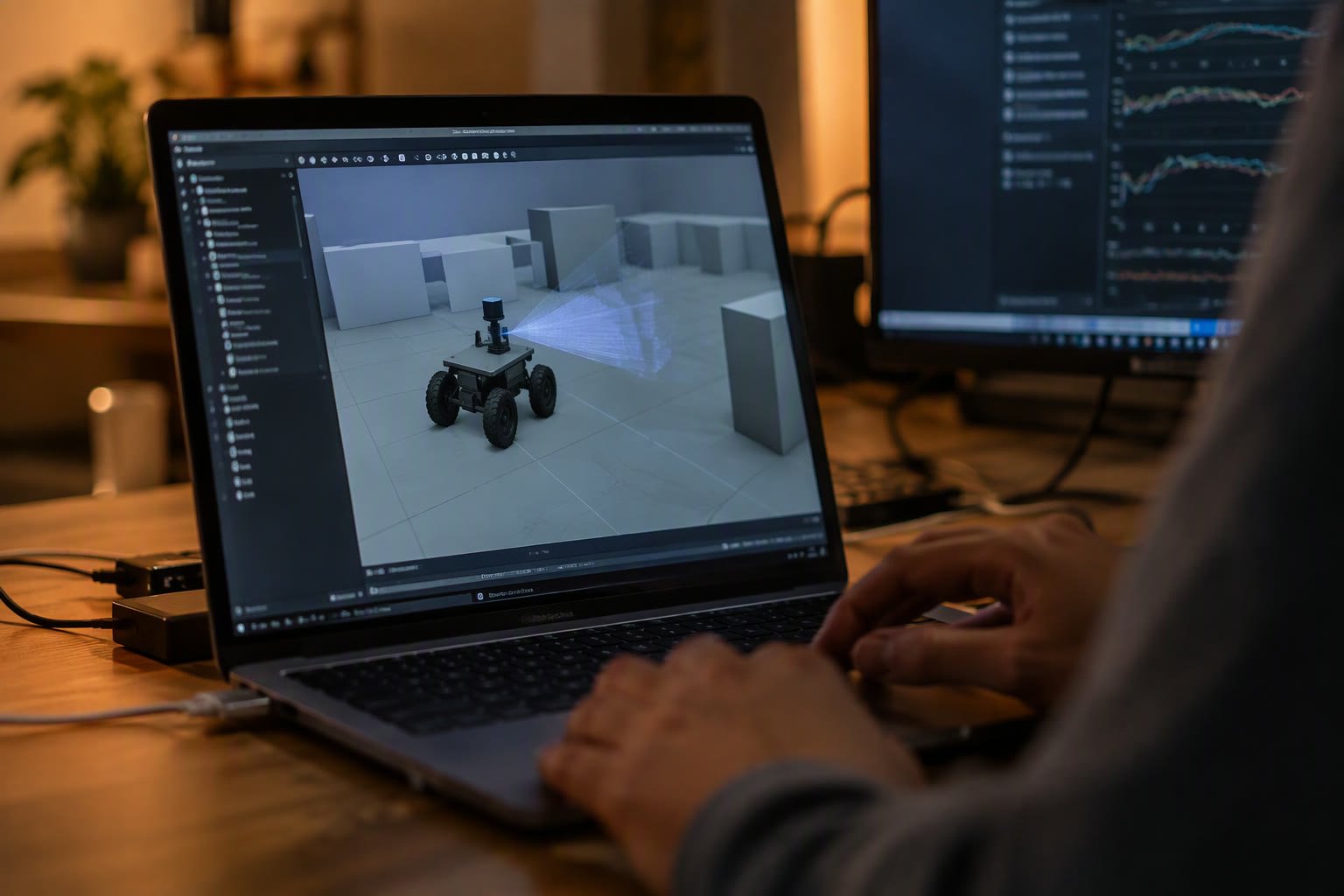
Simulation is how you crash a robot a hundred times without spending a rupee. Gazebo gives a ROS 2 robot physics, sensors and a world to move in, so you can debug navigation, control and sensor code before the hardware exists — or before it drives into a wall.
This tutorial sets up Gazebo with ROS 2 Jazzy, spawns a differential-drive robot, bridges lidar and clock topics, and covers the places where simulation quietly lies to you.
Gazebo and RViz are not the same tool
| Tool | What it does | What it does not do |
|---|---|---|
| Gazebo | Physics, contacts, sensors, actuator commands, time | Show your ROS topic graph or TF tree |
| RViz | Visualise scans, maps, TF, paths, point clouds | Simulate physics or sensors |
| ros2 topic and tf2 tools | Inspect data, timing and transforms | Render a 3D world |
Most beginners run Gazebo and wonder why the map looks wrong in RViz. The simulation is producing data; RViz is the window into it. You need both, plus the command line when something is silent.
Install on Ubuntu with ROS 2 Jazzy
Gazebo Harmonic is the long-term-support release paired with ROS 2 Jazzy. The integration packages are installed with a single meta-package after your ROS 2 installation is working:
sudo apt update
sudo apt install ros-jazzy-ros-gz
source /opt/ros/jazzy/setup.bash
ros2 launch ros_gz_sim gz_sim.launch.py gz_args:="empty.sdf"
If the Gazebo window opens empty, the install worked. If it fails with an OpenGL error, your machine or virtual machine does not have the graphics support Gazebo needs; try software rendering with LIBGL_ALWAYS_SOFTWARE=1 and expect a slow but usable view.
On Windows, use WSL 2 with WSLg rather than a native install. On a Raspberry Pi, run Gazebo on a laptop and treat the Pi as the hardware target; the Pi 5 can run small worlds but not a full navigation stack comfortably.
Spawn a robot from URDF
Keep your robot description in a ROS 2 package and publish it on /robot_description. Gazebo can spawn directly from that topic, which avoids maintaining a separate SDF model by hand:
ros2 run robot_state_publisher robot_state_publisher --ros-args -p robot_description:="$(xacro src/my_robot/urdf/robot.urdf.xacro)"
ros2 run ros_gz_sim create -name my_robot -topic robot_description
The robot appears at the origin, usually half inside the floor. Add a -z 0.1 argument, or set the spawn pose in your launch file. A robot that starts intersecting the ground will be thrown across the world by the physics engine, which looks like a control bug and is not one.
Drive it with the DiffDrive system
A differential-drive robot needs a plugin that converts velocity commands into wheel motion and publishes odometry. In Gazebo Sim this is the gz::sim::systems::DiffDrive system inside the model SDF. It takes left and right joint names, wheel separation, wheel radius, and the topics for command and odometry.
If you drive the robot with ros2 topic pub /cmd_vel geometry_msgs/msg/Twist and nothing moves, check three things in order: the bridge is running, the topic names inside SDF match the bridge, and the joint names match the URDF exactly. A typo in a joint name produces no error message — the robot simply ignores you.
Bridge ROS 2 and Gazebo topics
Gazebo and ROS 2 use different transport layers. The bridge translates selected topics. Bridge the clock first, because every sensor timestamp depends on it:
ros2 run ros_gz_bridge parameter_bridge \
  /clock@rosgraph_msgs/msg/Clock@gz.msgs.Clock \
  /scan@sensor_msgs/msg/LaserScan@gz.msgs.LaserScan \
  /cmd_vel@geometry_msgs/msg/Twist@gz.msgs.Twist \
  /odom@nav_msgs/msg/Odometry@gz.msgs.Odometry
For a real project, put the same pairs in a YAML file and launch the bridge node with it. Long command lines get lost, and a missing @ or a wrong message type fails silently in the terminal scroll.
Set use_sim_time:=true on every node that consumes sensor data. Without it, TF and sensor timestamps come from different clocks and your robot appears to teleport or lose localisation for no visible reason.
Add a lidar and a camera
Gazebo ships sensor systems for 2D and 3D lidar, depth cameras and IMUs. Add the sensor to the robot’s SDF with a topic name, then bridge that topic. Keep the sensor rate realistic: a 30 Hz lidar in simulation costs CPU and does not make your navigation better than a 10 Hz lidar.
Mount sensors where they will sit on the real robot, including height and tilt. A simulated lidar at the wrong height produces a map that cannot be compared with reality, which defeats the purpose of simulating.
Where simulation lies
| Simulation | Real robot | Consequence |
|---|---|---|
| Ideal wheels, no slip | Slip on smooth or dusty floors | Odometry looks better than it is; SLAM surprises you |
| Perfect sensor noise model | Dropouts, reflections, sunlight | Detection thresholds set too tight |
| No compute latency | 20–200 ms of processing delay | Control loops oscillate on hardware |
| Simple friction | Stiction, wear, uneven surfaces | Models that slide in sim fail to move in reality |
| No communication loss | Wi-Fi drops, serial errors | No recovery behaviour written |
Use simulation to prove logic, interfaces and geometry. Use hardware to prove timing, friction and power. A robot that works only in Gazebo is a hypothesis, not a product.
A workflow that saves weeks
- Simulate the interfaces first. Topic names, message types, frame names and rates. Get these right before writing behaviour code.
- Add one sensor at a time. Bridge it, echo it, visualise it, then move on.
- Record a rosbag in simulation. Replay it while changing code so you are not re-driving the robot for every test.
- Test failure cases. Kill a node, stop publishing the scan, publish a stale transform. Real robots fail this way.
- Port to hardware with the same launch structure. Swap the simulation launch file for the hardware one; keep node names and topics identical.
Cost and hardware
Gazebo is free and open source. The practical cost is a computer with a discrete GPU or a recent integrated GPU, 8 GB of RAM minimum and 16 GB for comfort. A used desktop with a mid-range graphics card is a better simulation machine than a thin laptop, and it costs less than a single lidar.
Related: ROS 2 for beginners, Nav2 tutorial, SLAM for beginners, robot chassis buying guide, choosing distance sensors.
Is Gazebo free?
Yes. Gazebo and the ROS 2 integration packages are open source. You pay only for the computer that runs them.
Do I need a GPU for Gazebo?
A discrete GPU makes a big difference, especially for cameras and 3D lidar. Small 2D worlds can run on integrated graphics, and software rendering works but is slow.
What is the difference between Gazebo Classic and Gazebo Sim?
Gazebo Classic is the older simulator ending support. Gazebo Sim, now just called Gazebo, is the current line used with ROS 2 Jazzy and later.
Why does my simulated robot not move?
Usually the cmd_vel topic is not bridged, the topic name in the SDF does not match, or the joint names are wrong. Check the bridge and echo the topic before changing the controller.
Can I use Gazebo instead of a real robot?
For learning interfaces and logic, yes. For timing, friction, power and safety, no. Simulation shortens hardware debugging but does not replace it.
Simulation launches are a good first real launch file; see the ROS 2 launch files tutorial.
Simulated nodes use the same communication patterns as real ones: ROS 2 topics, services and actions.
Simulation needs a model before it needs a world: URDF tutorial for ROS 2.
Gazebo Classic belongs to ROS 1 and the new Gazebo to ROS 2; see ROS 2 vs ROS 1.
Simulated sensors publish in their own frames; see ROS 2 TF2 for how they connect.
If you outgrow Gazebo, compare it with the alternative first: Isaac Sim vs Gazebo.
When the simulated robot should be driven by real controller code, see the ros2_control tutorial. For lighter physics work, MuJoCo is a strong alternative.
To map the simulated robot and test navigation, use the SLAM Toolbox tutorial.
The robot model itself is a URDF; see URDF vs SDF for why the simulation file is separate. Test runs are easier to debug with a rosbag.
Planning against a simulated cell is covered in the MoveIt 2 tutorial.
Sources and further reading
- Gazebo documentation — installation, SDF worlds and sensor systems.
- ROS 2 Jazzy documentation — nodes, topics, launch files and time.
- ros_gz — the bridge and simulation packages used in this tutorial.
- Nav2 documentation — running navigation in simulation and on hardware.