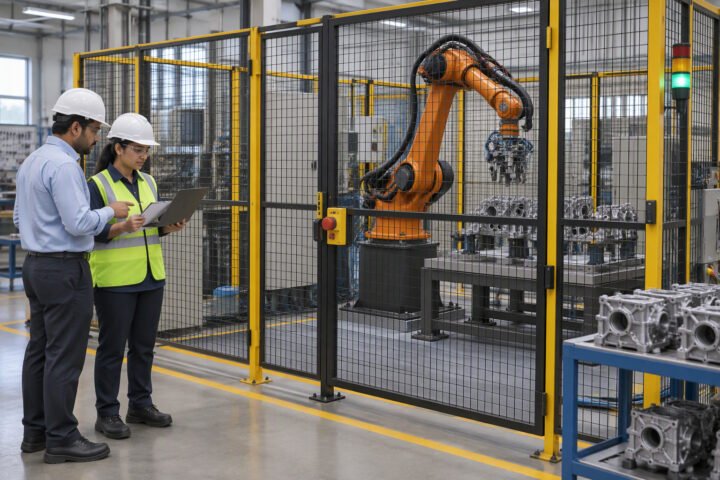
YOLO on a robot is a solved problem in the lab and a hard one in a cell. The detector is rarely the bottleneck; lighting, latency and the link from pixel to robot coordinate are.
This guide covers the hardware that can run a detector at a usable frame rate, how to prepare a small dataset, how to export and run the model, how to convert a detection into a 3D position, and the failure modes that make demos fall apart in production.
Start with the frame-rate budget
Decide how often your robot needs a decision. A mobile robot moving at 0.5 m/s needs a detection at least every 200 ms to react within 10 cm. An arm picking from a static bin can work at 2 frames per second. That number determines the hardware.
| Platform | Realistic inference | Notes |
|---|---|---|
| Laptop CPU | A few fps at 640 px | Fine for development and offline tests |
| Raspberry Pi 5 | Low single digits at 640 px | Use a small model, expect thermal throttling |
| Jetson Orin Nano | Tens of fps at 640 px | TensorRT export, active cooling required |
| Jetson Orin NX | Higher, or larger models | More power and cost |
| Desktop GPU | Highest | Not practical on a small robot |
These are ranges, not promises. Measure on your own robot with your own camera, because resolution, model size and cooling change the answer by a large factor.
Pick a model size that fits
Current YOLO families ship in several sizes, from a nano variant to a large one. The nano model is roughly an order of magnitude faster than the large model and less accurate on small or overlapping objects. For a robot detecting cups, boxes or people at close range, nano or small is usually enough.
- Nano: embedded boards, high frame rate, easy classes.
- Small: a good default on Jetson or a laptop.
- Medium and large: offline inspection, or a desktop GPU in the cell.
- Segmentation models: when you need the outline, for grasping or area.
- Pose models: when you need keypoints, such as a human hand.
Do not start with the largest model and plan to shrink later. Start with the smallest model that clears your accuracy requirement, because deployment constraints are harder to fix than accuracy.
Build a dataset from your own camera
Public datasets rarely match your lens, lighting and background. Record a few hundred frames from the actual robot in the actual cell, at the heights and angles it will use. Then label them.
- Capture at the deployment resolution, not a higher one you will never use.
- Include the lighting you will actually have, including the bad hour of the day.
- Include partial occlusion, clutter and empty scenes.
- Label consistently; define the box for a partly visible object.
- Hold out a validation set from a different session, not the same video.
A few hundred well-labelled images can outperform a few thousand sloppy ones. The usual failure is a dataset that only contains perfect views, so the model fails the moment a part is rotated or half-hidden.
Train, export and run
Training on a desktop GPU is faster and does not tie up the robot. Export the trained weights to a runtime your robot supports: ONNX for portability, TensorRT for Jetson, NCNN or TFLite for small ARM boards.
yolo detect train data=dataset.yaml model=yolo11n.pt epochs=100 imgsz=640
yolo export model=runs/detect/train/weights/best.pt format=onnx imgsz=640
yolo export model=runs/detect/train/weights/best.pt format=engine imgsz=640
TensorRT engines are specific to the GPU, TensorRT version and often the exact batch size and resolution. Build the engine on the target device, not on your laptop, or you will spend an evening debugging a deserialisation error.
At runtime, keep the pipeline simple: capture frame, resize, infer, filter by class and confidence, publish results. Every extra copy and colour conversion costs milliseconds on an embedded board.
From bounding box to robot coordinate
A box in the image says where the object is on screen. The robot needs a position in its own frame. There are three common ways to get there.
| Method | How | Best for |
|---|---|---|
| Fixed plane assumption | Back-project the box centre onto a known table height | Pick and place on a flat surface |
| Depth camera | Sample depth at the box centre or median of the mask | Unknown heights, bins |
| Calibrated stereo or lidar | Triangulate or project onto a point cloud | Outdoor or long range |
All three need camera intrinsics and a transform from the camera frame to the robot base. In ROS 2, that is a TF lookup at the timestamp of the image, not “latest”. Using the latest transform with a stale image is a classic source of centimetre-level error while the arm moves.
# typical ROS 2 shape
# 1. subscribe to image and camera_info
# 2. run detector on the image
# 3. use the box centre pixel and depth to get a 3D point in camera frame
# 4. transform that point to base_link using the image timestamp
# 5. publish a pose or send a grasp goal
Calibration matters more than the model
If the camera intrinsics are wrong, the box will be in the right place on screen and the robot will reach the wrong place in the world. Calibrate with a checkerboard or Charuco board, and re-check after any bump to the camera mount.
- Calibrate at the resolution you will run.
- Use at least 20 varied views across the image.
- Record the reprojection error and keep it with the calibration file.
- Verify the hand-eye transform with a physical target, not by eye.
- Re-calibrate after transport, impact or a lens change.
Failure modes you will actually see
| Symptom | Likely cause | Fix |
|---|---|---|
| Good in the lab, poor in the cell | Lighting or background changed | Retrain with cell images |
| Detections lag the robot | Full-resolution inference or no hardware acceleration | Smaller model, lower resolution, TensorRT |
| Boxes drift when the arm moves | Transform at the wrong timestamp | Use the image timestamp for TF |
| Misses small parts | Downscaling or model too small | Crop, raise resolution, larger model |
| Confident false positives | Backgrounds in the dataset too clean | Add negatives and clutter |
| Frame rate drops over time | Thermal throttling | Cooling, lower power mode, duty cycle |
A sensible first deployment
Start with a fixed camera looking at a flat pick area, one object class, and a robot that moves to a detected position and stops. No grasping, no clutter. Prove the pixel-to-robot path end to end, then add a second class, then add grasping, then move the camera onto the arm.
That sequence isolates failures. Most teams that struggle jumped straight to a moving camera with a multi-class model, and then cannot tell whether the problem is detection, calibration, timing or the grasp.
Related: OpenCV on Raspberry Pi, robot vision camera guide, Raspberry Pi vs Jetson, TCP calibration, ROS 2 TF2 tutorial.
Can YOLO run on a Raspberry Pi?
Yes, with a small model and a lightweight runtime, but expect low single-digit frame rates at 640 pixels. A Jetson board is a better fit if you need more than about 10 frames per second.
How many images do I need to train a YOLO model for a robot?
A few hundred well-labelled images from your own camera often work for a small number of classes. More important than count is variety: lighting, angles, occlusion and empty scenes.
How do I convert a YOLO bounding box into a robot position?
Take the box centre pixel, use the camera intrinsics and a depth source or a known plane to get a 3D point in the camera frame, then transform it into the robot base frame using the image timestamp.
Why does my detector work in testing but fail in the cell?
Usually the training images do not match the cell lighting, background or camera angle. Retrain with images recorded in the real environment, including difficult conditions.
Which YOLO export format should I use on a Jetson?
TensorRT, built on the target device. ONNX is a good portable fallback, but TensorRT gives the best throughput when the engine matches the device and software versions.
A clean image starts with the machine vision lighting guide.
Detection gives a box; guidance needs a transform, covered in the vision-guided robotics guide.
A detector gives a bounding box, and an OpenCV calibration step gives that box a real world position.
A colour model gives boxes, not distance; add a depth camera if the robot must reach the object it detected.
To run a detector at frame rate, convert it with the TensorRT workflow described here.
Detection models are one option among several, and the defect detection guide explains when rules are the better choice.
Sources and further reading
- Ultralytics documentation — training, export and deployment guides.
- OpenCV documentation — camera calibration and geometry.
- NVIDIA TensorRT — engine building and optimisation.
- ROS 2 documentation — image transport and TF2.